
The session ends halfway through a fight. Save the board and pick up next week with the same hit points, effects, and turn order. Or prepare an encounter early and send another Game Master a link they can use at their own table.
Saving and publishing arrive in OpenFray 1.2. The combat console is free, runs in your browser, and needs no account to run a fight. A free account lets you save and publish.
Open the console and put your next encounter on the board.
The session that ended mid-fight
Save keeps the board as it stands: creatures, party, hit points, effects, conditions, initiative, the current round, and the log.
You can also build the fight on Tuesday and have it waiting on Saturday with the cast already assembled. Save as many encounters as you want, as often as you want.
Saved fights live in the compendium under Encounters. Each card shows what was on the board, grouped and counted, so you can tell one goblin ambush from another without opening either.
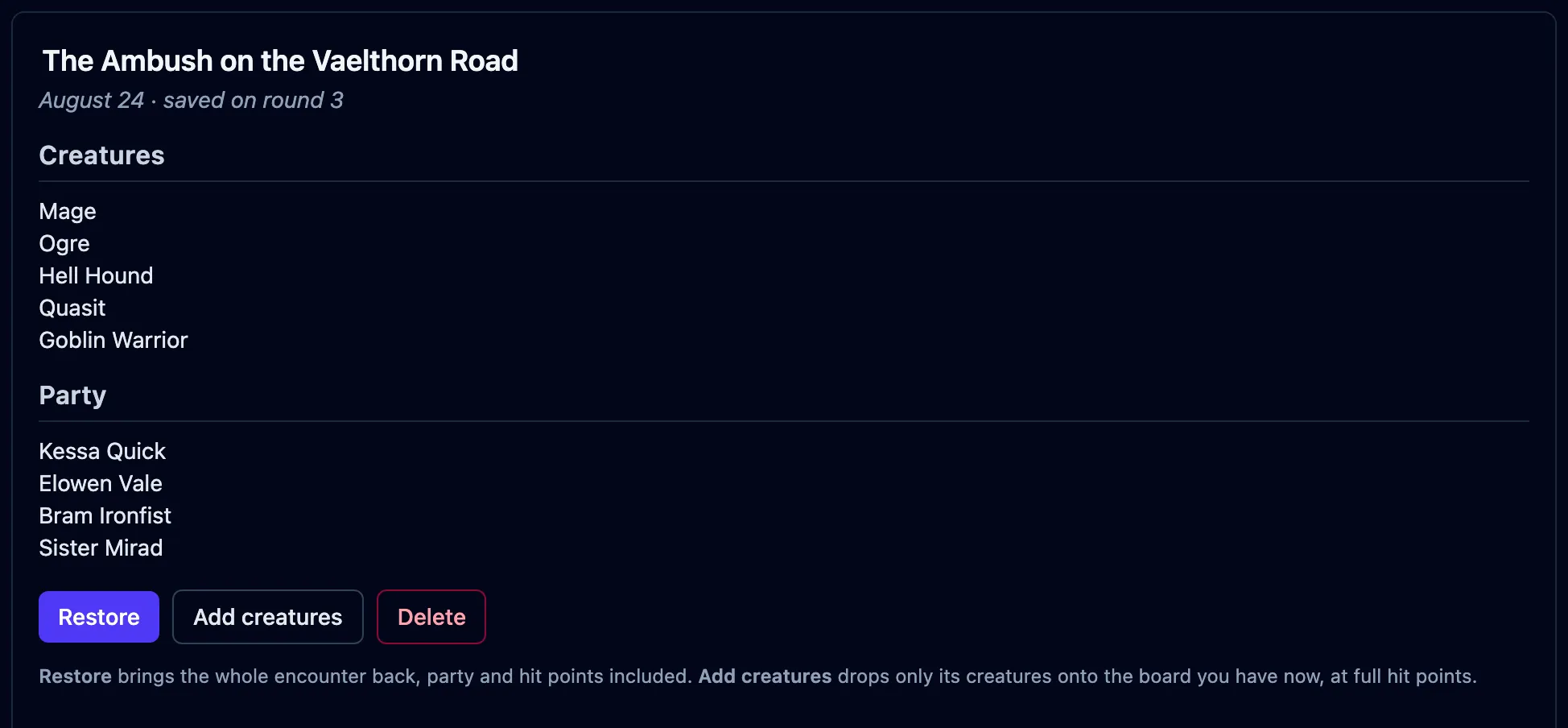
Restore brings the whole encounter back, including the party and hit points. Add creatures puts its creatures on your current board at full hit points, ready to run the same ambush for a different group.
A free account keeps your saved encounters available on the device you use for the next session.
Hand an encounter to somebody else
Publish puts an encounter, or one creature, at a link anyone can open. They read it in the browser, and add it to their own board with one click.
Send the link to the Game Master who asked how you ran the ambush. Add it to a blog post or video description so readers can load the encounter you describe. You can also publish a creature you wrote for other tables to use.
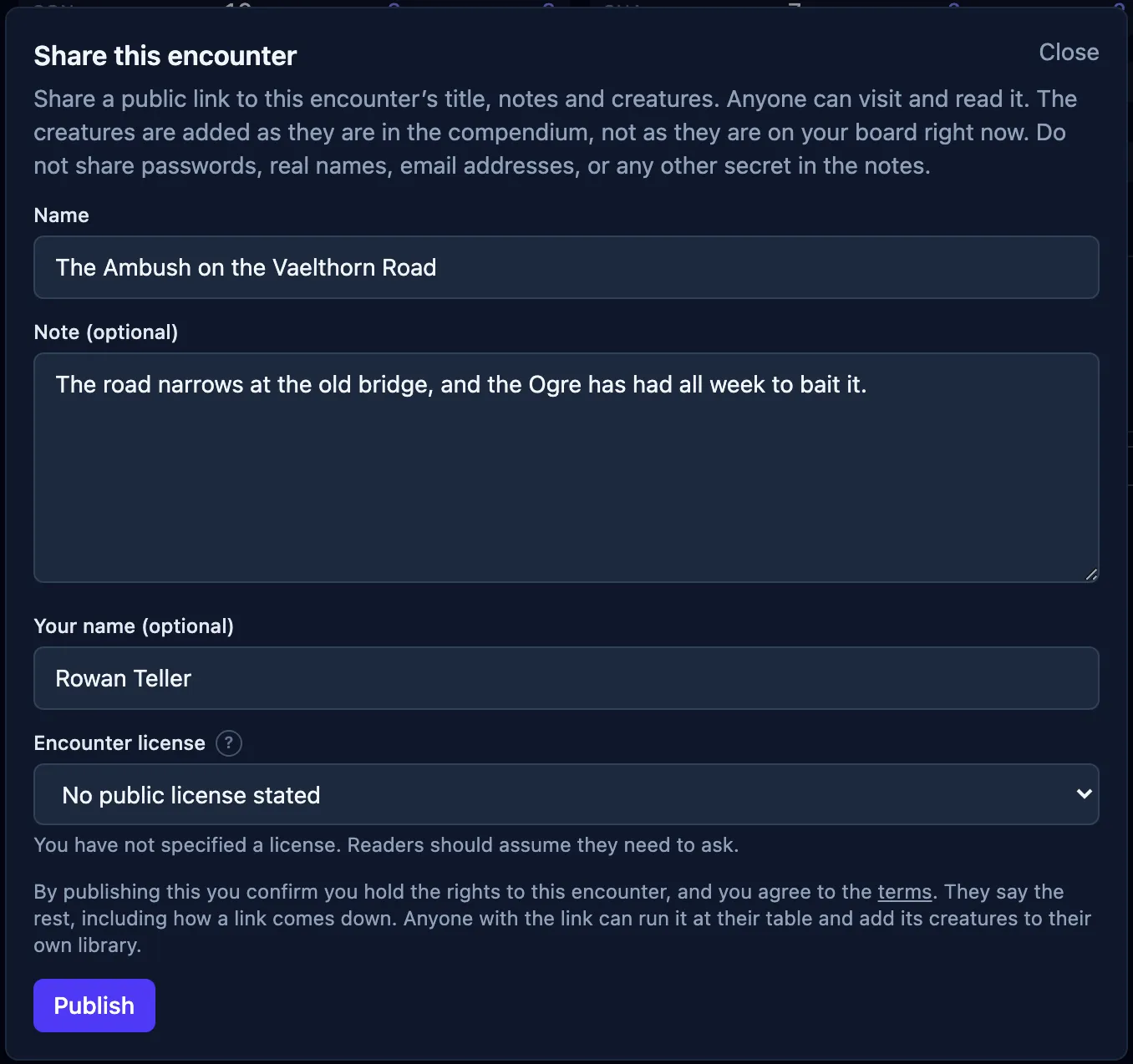
A published encounter shares the cast, its name, your note, a byline, and a license. Your player characters and the state of the fight stay private: hit points, effects, initiative, and the log are left out.
Publishing needs a free account, which also gives you control over taking the link down.
Two licenses, kept apart
An encounter carries a license covering your own words: its name, your note, and which creatures you put together. Each creature carries whatever its own author gave it. Collecting a stat block does not relicense it.
A creature without a reuse license can be read on the page but is excluded when someone adds the encounter. The console lists those creatures before adding anything. The default is no license; that does not grant permission to reuse the creature.
A creature can also say where it came from, and the stat block shows it. A creature brought in with the OpenFray Importer cannot be published at all: those stat blocks are Wizards of the Coast’s.
Manage your published links
Shared links, under your account, lists what you have published: copy a link again, open it to see what a reader sees, or unpublish it. Unpublishing is immediate and final.
Links have no automatic expiry. An account holds up to 200 published pages; unpublishing makes room.
Reading somebody else’s link
A shared link opens its own page without loading the console: the cast, the note, the byline, and every stat block. Use this encounter puts the creatures on your board.
Every published page carries Report this. Anyone can use it, nobody is asked who they are, and an address is optional. Reports reach a person. A page that breaks the terms is removed, and whoever published it is told. A page that was taken down says so, rather than reading like a code somebody mistyped.
Shared stat blocks are validated before use. Notes support bold, italic, quotes, lists, and headings, with content that navigates or fetches excluded.
Set up the table’s screen
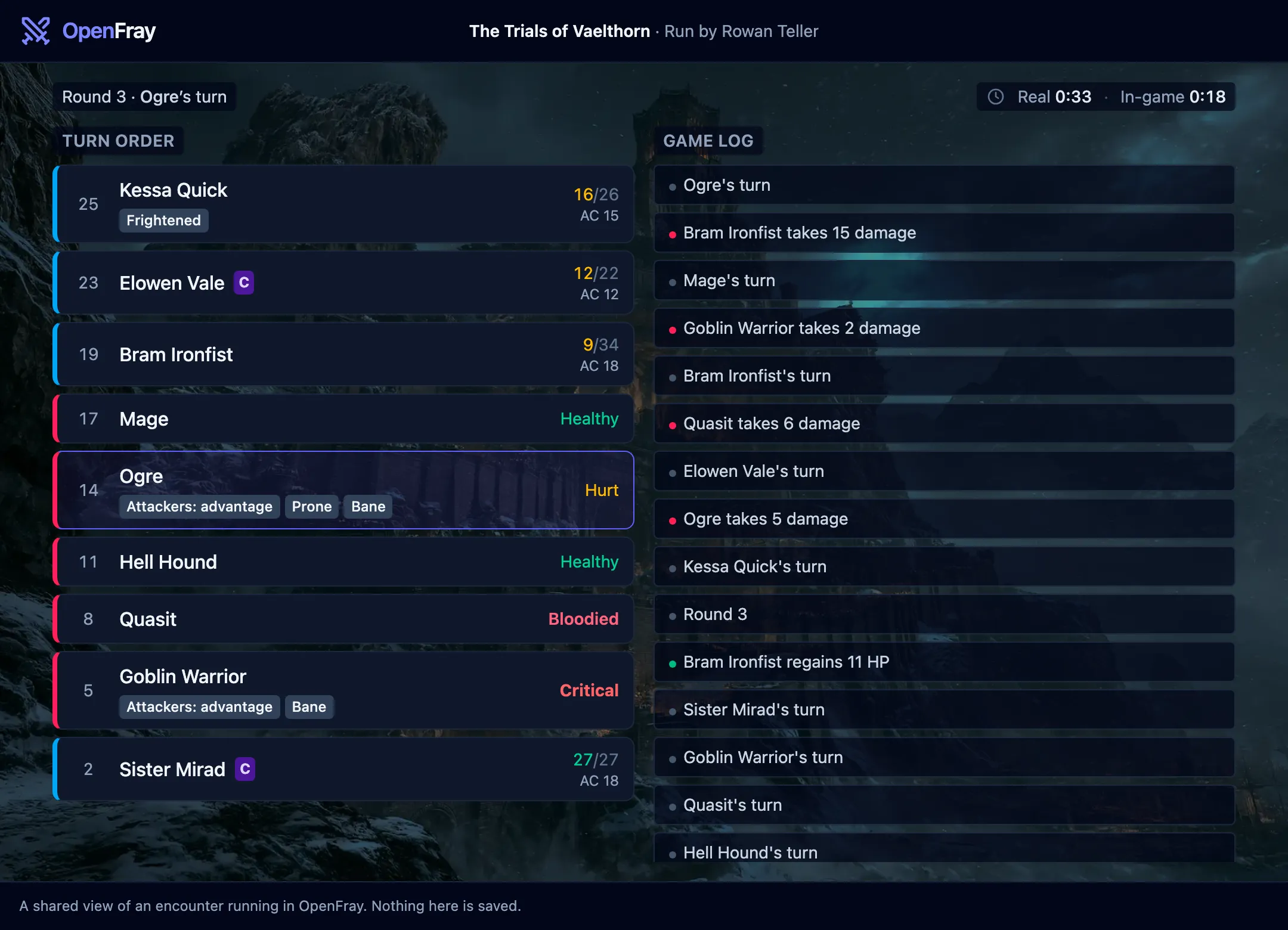
Give your player view a PIN, a campaign backdrop, and a heading with the campaign and Game Master names. The sharing control now uses a cast icon.
Set a four-digit PIN for the player-view link. Viewers enter it before the board appears; a wrong PIN leaves the board hidden.
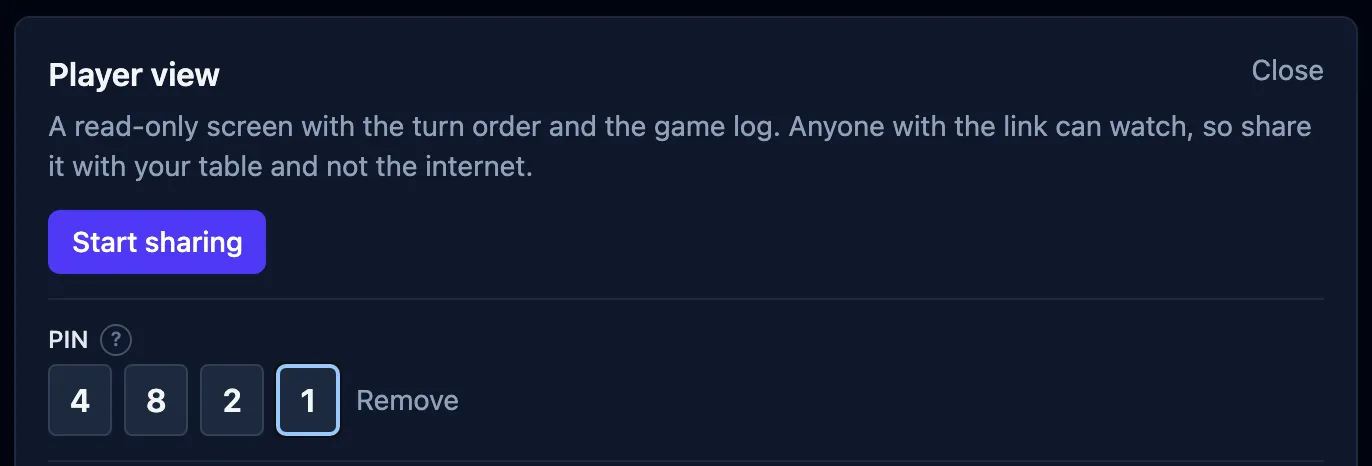
Choose a backdrop for the campaign: a mountain fortress, desert ruin, elven city, frozen lake, and more. Each backdrop has its own light or dark treatment; the theme toggle is disabled while one is displayed.
Show the campaign’s name and your Game Master name above the board. Each has its own setting under Player view. Both start off and require a signed-in GM.
The dice bar
Roll a d100 from the dice bar, or choose Regular, Adv, or Dis before pressing a die. The mode applies to any die. A d20 rolled at advantage is labeled that way in the log, with both dice available to inspect.

Smaller things
- Player-view links now use
openfray.app/p/; published encounters useopenfray.app/s/. - Neither is counted by its code: analytics sees
/s/and/p/and nothing after them. - Signing out hands a shared link back to an anonymous one, so a device that no longer owns your name stops broadcasting under it.
- Rests, Group save and Cast spell hold their place in the header on an empty board and grey out, instead of vanishing. Save greys out the same way sharing already did.
- A condition named in a spell’s rules text, or in the Applied effects list, explains itself on hover, the way one in the tracker already did.
- Tap or point at the ? beside a field’s label to read its description.
- The short-rest tally sits in the campfire button’s corner, off the artwork.
- The compendium’s tabs lay out three by three.
- The app says encounter where it used to say fight.
Prepare the next session
The handbook explains how to save a fight, publish an encounter, and share the player view. The changelog records the full release.
Open the console to build your next encounter. Sign in with Google or Discord to save it for your own table or publish it for another Game Master.