
Publish an encounter
Publishing puts an encounter at a link anyone can open. They read it in their browser, and add it to their own board with one click. It is how you hand a fight to another Game Master, or put one under a blog post. Publishing a single creature works the same way from its own card; see Publish a creature for that.
This is not the player view, which is a live screen for your own table during a fight. A published link is prep: it carries no hit points, no effects, and nothing about a fight in progress.
Publishing needs an account. The console doesn’t, and that hasn’t changed. Publishing puts something of yours at a public address, so we ask you to sign in first: a published page has somebody standing behind it, and you can take it down again.
Publishing an encounter
Section titled “Publishing an encounter”The share button is under the tracker, at the foot of the column, beside the save button. It’s grayed out until there’s a creature on the board to publish: a board holding only your player characters has nothing to hand over.

- Put the creatures you want on the board.
- Click the share button.
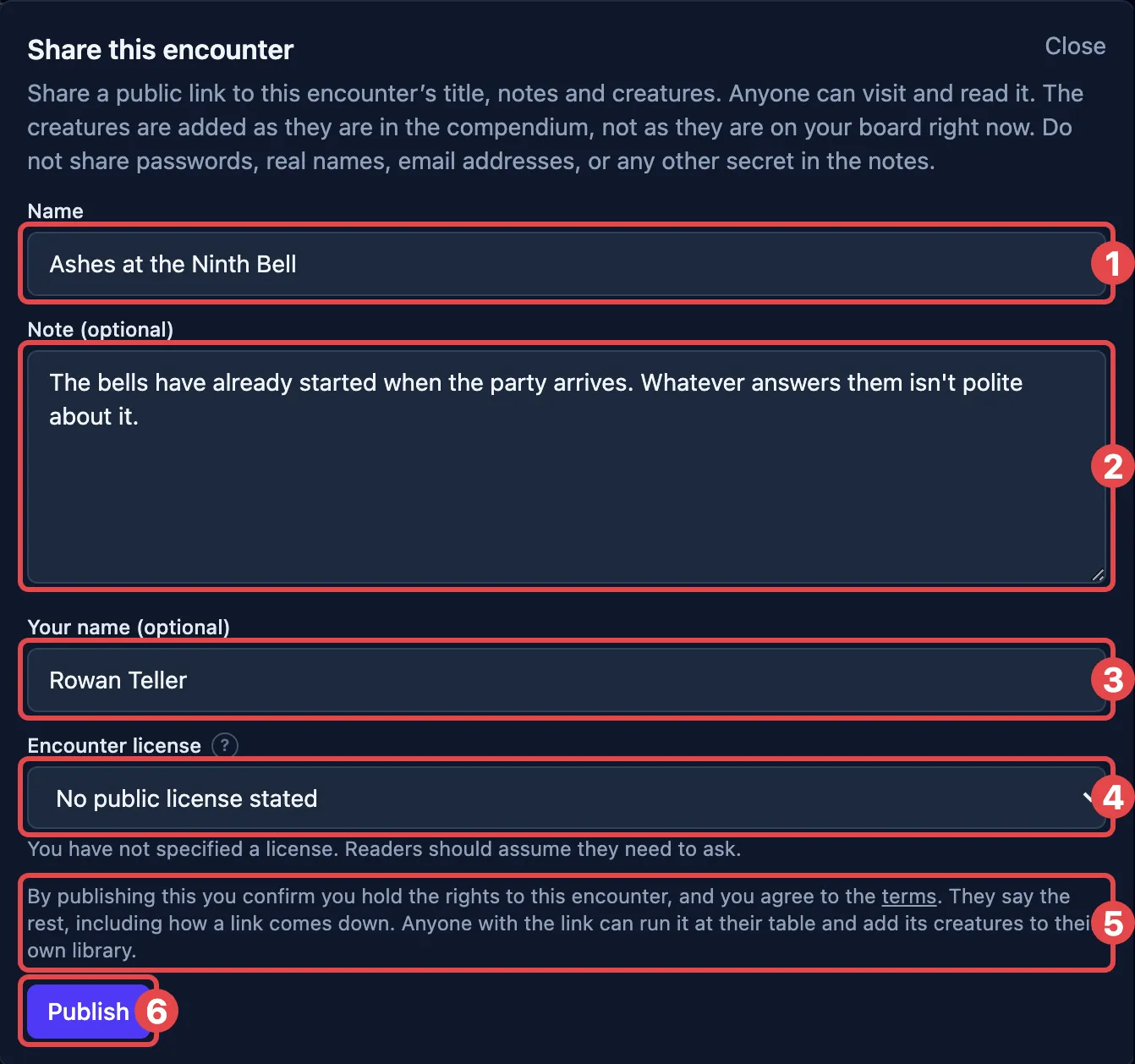
- Give it a Name. This is what a reader sees first.
- Write a Note, if you want one. This is the place for how the ambush opens or what the boss does first. It takes basic formatting: bold, italic, quotes, lists, and headings.
- Check the byline. It starts as the name on your account and you can type over it.
- Choose an Encounter license, covered below.
- Read the line above the button. It says what pressing it confirms: that you hold the rights to the encounter, and that you agree to the terms.
- Click Publish.
The dialog then becomes the link itself, with the same three buttons the Shared links page carries (Copy, Open, and Unpublish), and Done to close it. Unpublish asks first, and taking it down here drops the dialog back to the form: the code is gone for good, and publishing again makes a new link rather than reviving the old one.
A ? beside a field explains what it’s for. Point at it, or tap it on a touchscreen.
What travels is the cast, the name, the note, the byline and the license. What does not: your player characters, hit points, effects, initiative, the log, or anything else about the fight you were running. The creatures are published as they are in the compendium, not as they stand on your board.
Licenses, and what they cover
Section titled “Licenses, and what they cover”Two different claims, and the split is the point.
The encounter’s license covers your own words: the name, the note, and which creatures you put together. It says nothing about the creatures themselves.
Each creature’s license is whatever its author gave it, and it travels with the creature. A creature from the SRD carries the SRD’s terms. One you wrote carries whatever you said when you made it.
Stating no license is the default, and it is not a grant: copyright reserves everything unless somebody says otherwise. A creature with no license stated can be read on the page but will not copy to anybody’s library.
Your account can hold a default license that the dialog starts on. It’s in Account, and changing it changes nothing you have already published.
What a reader can do
Section titled “What a reader can do”Somebody opening your link gets a page with the encounter’s name, your note, your byline, and the cast. They can:
- read every creature’s stat block;
- click Use this encounter to put the cast on their own board, which opens the console with the creatures staged;
- report the page, if it shouldn’t be up.
Creatures that aren’t licensed for reuse are read-only. They stay on the page and are left behind when somebody adds it, and the app says which ones and why before it adds anything.
A shared link is unlisted, not secret. There is no directory of them and search engines are told not to index them, but anyone you send the link to can send it on.
Your published links
Section titled “Your published links”Everything you have published is listed in one place: click your account, then Shared links.
Each row shows the name, whether it is an encounter or a creature, when you published it, and the link itself. Beside each one:
- Copy puts the link on your clipboard again.
- Open shows you what a reader sees.
- Unpublish takes it down.
Unpublishing is final. The link stops working for everybody, immediately and for good. Anyone who already added the encounter to their board keeps it, because it was copied onto theirs when they added it.
Nothing expires on its own. A link you publish today still works next year unless you take it down. An account can hold up to 200 published pages at once; unpublishing makes room.
Deleting your account takes down everything you published with it.
Reporting a page
Section titled “Reporting a page”Every published page has a Report this button. Anyone can use it, and nobody is asked who they are. A report says what is wrong (spam, sexual content, hate or harassment, impersonation, something copied out of a book, or something else). It can carry a message too, and an address if you want a reply.
Reports are read by a person. A page that breaks the terms is removed, and whoever published it is told at the address on their account. If you’d rather write than use the form, the address is reports@openfray.app.
If a page you published is removed, the link answers by saying so, rather than pretending the code never existed.
Where to next
Section titled “Where to next”- Publish a creature — sharing a single stat block instead of a whole board.
- Save a fight for later — keeping one for yourself instead.
- Share the player view — the live screen for your own table.
- Build your own creatures & spells — including the license a creature carries.
- Your account & what’s saved — everything an account holds.