Apply & manage effects
Everything that lands on a creature during a fight is applied from one box, and managed from one list. This page covers both, plus presets, Exhaustion, and counters. What an effect is, and how long each kind lasts, is explained in How effects work.
Apply an effect
Section titled “Apply an effect”Click the creature in the tracker, then click Apply effect in the controls beside its stat block. The box stages everything you pick; nothing lands on the creature until you press Apply, so you can build the whole thing and change your mind on the way.
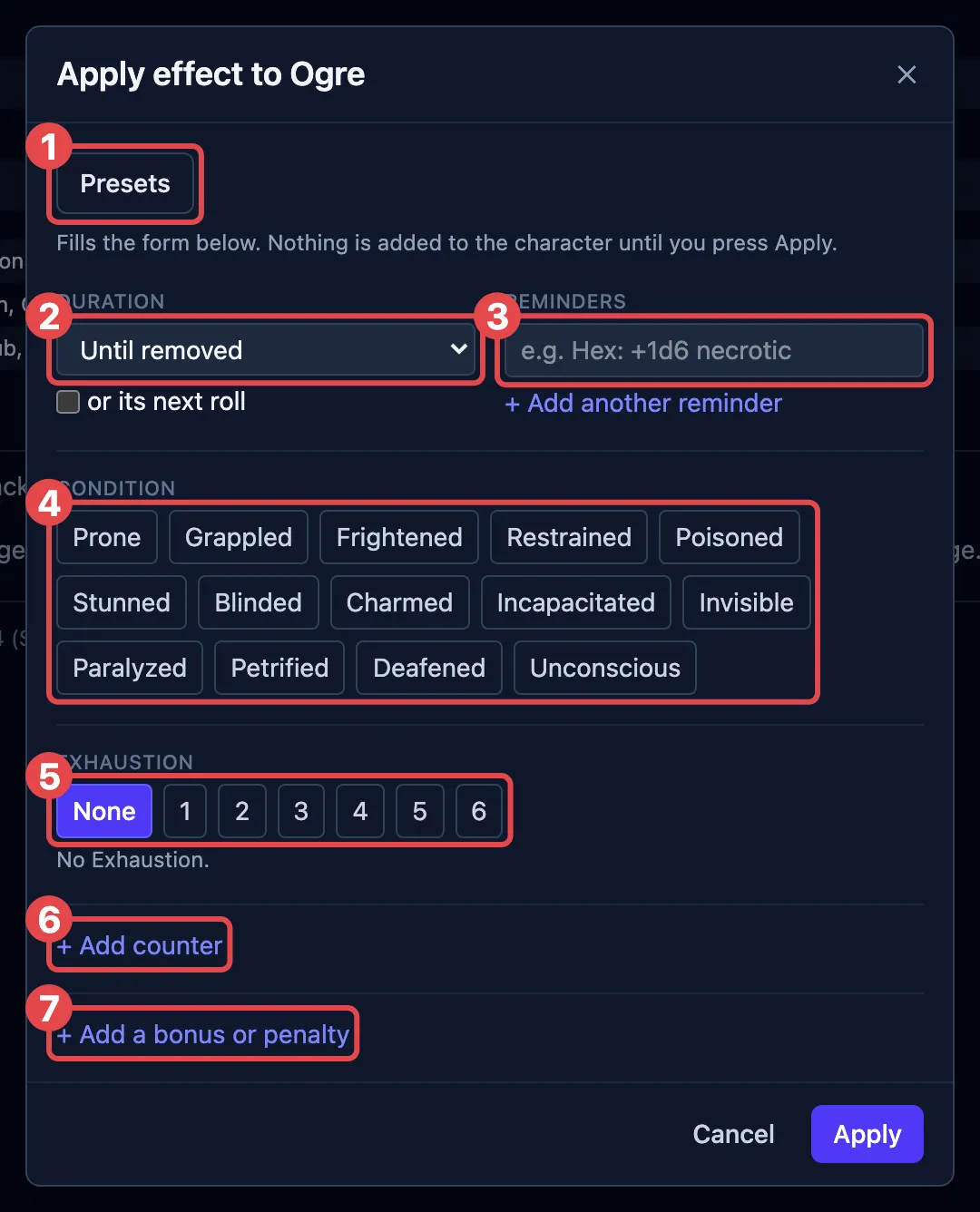
The numbered parts match the picture. Use the ones you need, in any order:
-
Start from a preset, if one fits. Presets, at the top of the box, searches the ready-made bundles, both yours and the ones your libraries ship. Picking one fills the form below, replacing whatever was staged, and you can adjust any part before applying. The row appears once there are presets to offer. See Presets.
-
Set how long it lasts. The duration applies to everything staged in the box:
Choice Use it for Until removed you’ll clear it yourself when the story says so Save ends something the creature can shake off. It then asks which save, the number to beat, and whether it’s rolled at the start or the end of that creature’s turn Start of turn, End of turn anything the rules end on a turn, like “until the start of its next turn”. A second dropdown picks whose turn 1 minute … 24 hours anything with a stated duration, such as a spell or a potion Custom… any other length, typed as a number of rounds, minutes, hours, or days Start of turn and End of turn open a Whose turn dropdown listing everyone on the board, allies first. It starts on the creature you’re applying to, which is what most rules mean. Pick someone else when the effect ends on their turn instead, like a fear that lasts until the creature that caused it acts again.
Below the duration, tick or its next roll to end the effect early on the first roll it changes, like Vicious Mockery’s next attack. It rides on top of whatever duration you picked, so the effect still ends on its own if no such roll comes. OpenFray never sees a player’s own rolls, so for a player the duration above is what ends it. The box isn’t offered for Save ends, where a roll ending it is already the point.
-
Type a reminder. A short note OpenFray shows on the creature’s row. It reminds you; you decide what it does. + Add another reminder stages a second note.
-
Toggle conditions. The ones already on the creature are highlighted, and tapping one again takes it off.
-
Set an Exhaustion level. Exhaustion is a number from 1 to 6. Click the level, and the line below spells out what it does before you apply it. None takes the condition off. See Set an Exhaustion level.
-
Add a counter. Click + Add counter and name it. Tick Hidden from players to keep its number off the shared player view. See Add a counter.
-
Add a bonus or penalty. Click + Add a bonus or penalty and pick the Effect (Advantage, Disadvantage, or a number), what it applies to, and whose rolls: the creature’s own, or rolls made against it. It can apply to a kind of roll (attack rolls, saving throws, ability checks, or everything) or to one of the creature’s numbers: armor class, Speed, or the hit point maximum. A modifier on saving throws or ability checks can be narrowed to particular abilities, so “Disadvantage on Wisdom checks” reaches only those. Give it a label, like Bless or Reckless, so you recognize it on the board later. OpenFray spells out what you’ve built in plain English.
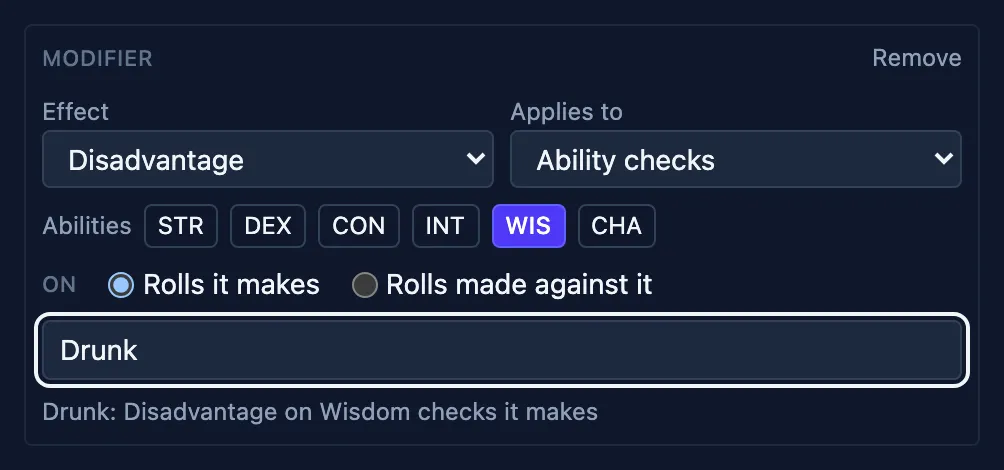
A Speed amount can be a number (-10), or half, zero, or double.
With two or more parts staged, Apply as one offers a name: Drunk, Cursed. Named, everything above lands as one bundle that clears together; left blank, each part gets its own badge.
Finish with Apply, or click Save as preset first to keep the bundle for next time.
Two examples
Section titled “Two examples”Reckless Attack
Section titled “Reckless Attack”The barbarian’s player announces it. There’s no spell to cast and nothing on any stat block; until their next turn starts, attacks against them have advantage.
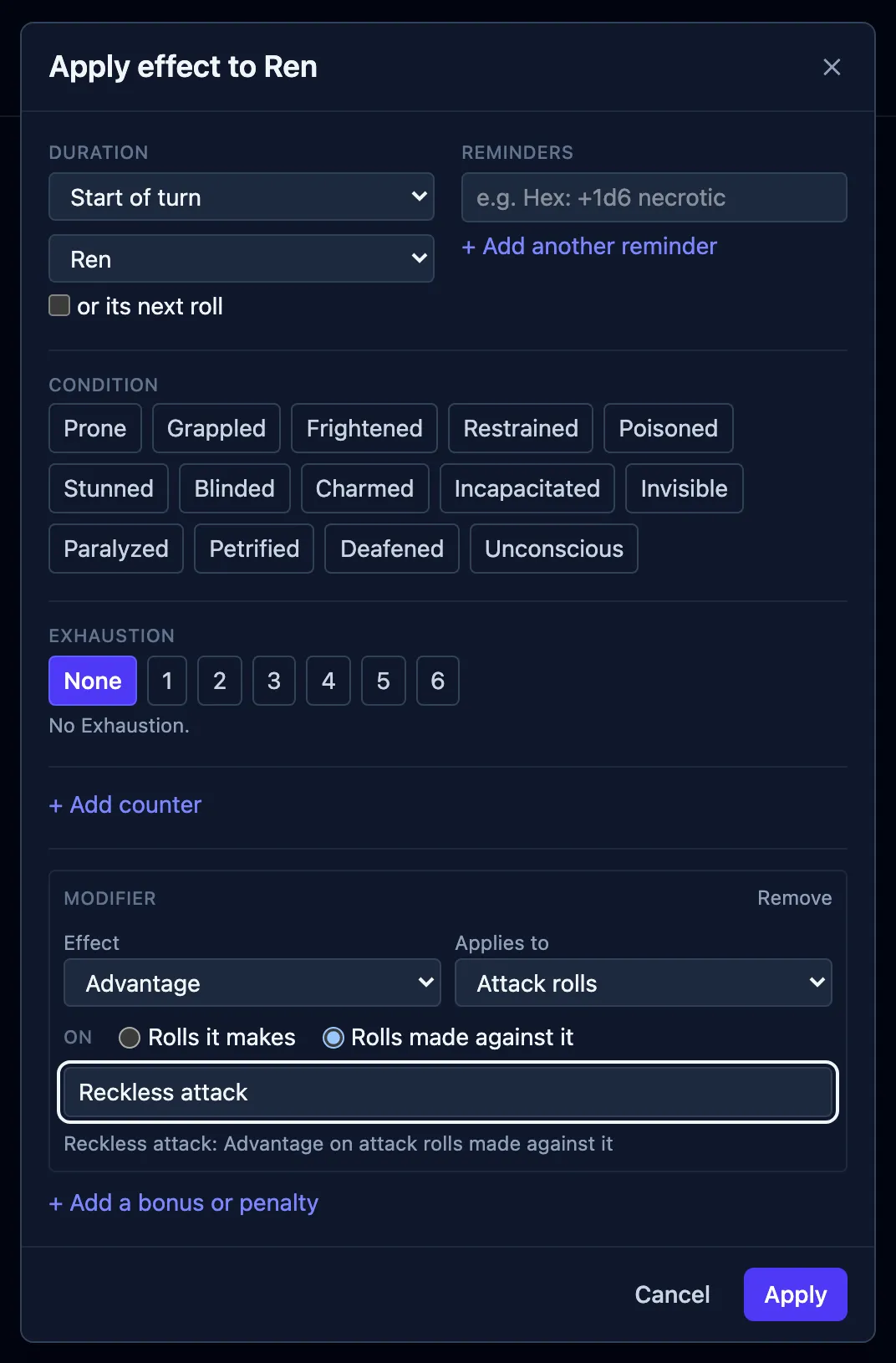
- Click the player’s character, then Apply effect.
- Set Duration to Start of turn, and leave Whose turn on the character themselves, so it clears when their next turn begins.
- Click + Add a bonus or penalty.
- Set the Effect to Advantage, Applies to to Attack rolls, and On to Rolls made against it.
- Set the label to Reckless attack, so the badge on their row says why.
- Click Apply.
Now when a creature swings at them, OpenFray rolls with advantage on its own, shows both dice, and names Reckless attack as the reason.
Something you just made up
Section titled “Something you just made up”A creature throws a flask of oil on a player, and now they’re covered in oil. There’s no condition for that and no spell involved; you just don’t want to forget it two rounds from now.
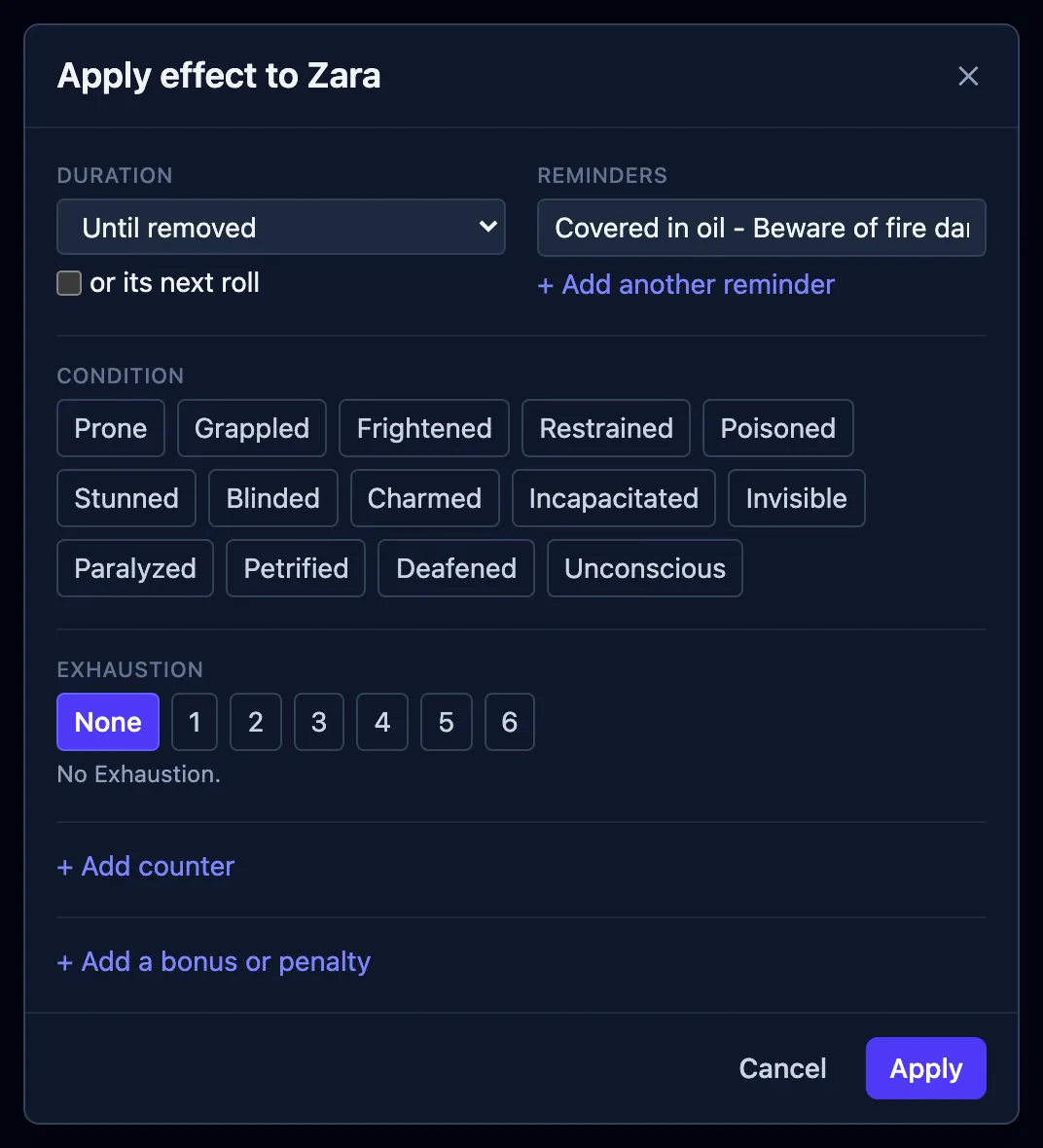
- Click the player, then Apply effect.
- Set Duration to Until removed, because it ends when the story says so.
- Type the note in Reminder and press Apply.
It becomes a badge on their row like any other effect. OpenFray shows the reminder until you clear it, and you decide what it means.
The Applied effects list
Section titled “The Applied effects list”The Applied effects list, in the controls beside the stat block, holds every effect on the selected creature with its buttons. A bundle appears under its own name with its parts listed beneath it:
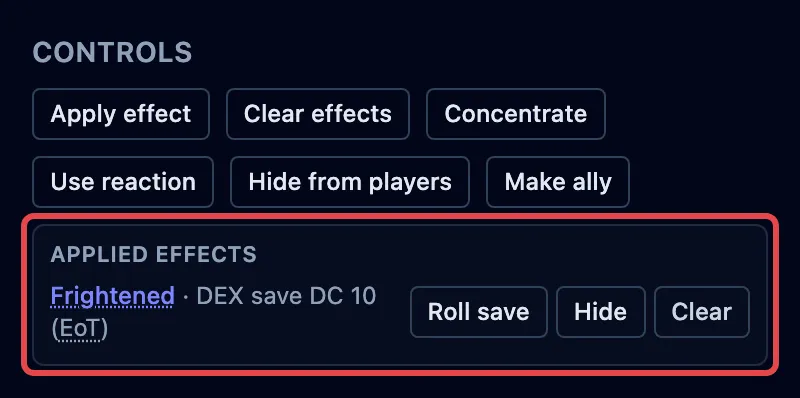
- Clear removes an effect. Inside a bundle it removes just that part; Clear all on the bundle’s own line removes the lot.
- Roll save rolls the save of an effect that ends on one; the line shows the ability and the number needed. For a player, use it to record their roll, or just Clear the effect when they pass.
- Hide keeps an effect off the shared player view. A hidden effect is tagged Hidden, and clicking again shows it. A bundle reaches your players as one badge, so Hide sits on the bundle’s line and covers everything inside it.
- Clear effects, at the bottom, removes all the applied effects at once.
A condition in this list is written under a dotted underline, the same treatment a rules term wears in a stat block. Point at it and its rules come up, so you can settle what Frightened actually does without leaving the fight. The badge on the tracker row is a remove button rather than a reference, so the rules live here instead.
Casting a spell can put effects on the board too, already bundled under the spell’s name. See Cast a spell.
Presets
Section titled “Presets”A preset is a bundle you apply more than once: Drunk, a disease stage, a house rule. Open Apply effect and click Presets to search them. Picking one fills the form, and nothing lands until you press Apply, so you can adjust it first.
Presets come from two places:
- Your own. Stage the parts once, then click Save as preset and name it. It’s kept in your library and offered in every fight.
- A library’s. Turning a library on in Settings adds the presets it ships: Brood & Bloom carries its disease stages and brood counters, and On Strong Waters and Potent Simples carries Intoxication, Craving, and the degrees of addiction.
Read any preset in full on the compendium’s Effects tab. See The compendium.
Set an Exhaustion level
Section titled “Set an Exhaustion level”Exhaustion is a level from 1 to 6; what each level does is explained in How effects work. To set it:
- Click the creature, then Apply effect.
- Under Exhaustion, click the level, or None to take it off.
- Read the line below the levels. It says what that level does before you commit.
- Click Apply.
The creature’s row shows one badge reading Exhaustion 3, and the Applied effects list shows what the level landed. Its buttons sit on the badge’s header line:
| Button | What it does |
|---|---|
| +1 | Raises the level by one. It stops at 6. |
| −1 | Lowers it by one. At 0 the condition ends. |
| Clear all | Takes Exhaustion off entirely, with everything it applied. |
The parts underneath have no buttons of their own. They’re what the level means, so changing one alone would only put it out of step with the number.
From an attack or a save
Section titled “From an attack or a save”Plenty of creatures cost a failed save a level: a troll’s missing limbs, a night in the cold. You don’t have to open Apply effect for those. The +1 Exhaustion chip sits with the condition chips in the attack and save boxes, and in Group save. It raises each affected creature from the level it already carries, so a group of six all move up by one whatever they were on.
The chip ignores the duration beside the condition chips. A level lasts until you lower it.
Exhaustion in a preset
Section titled “Exhaustion in a preset”Exhaustion is cumulative, so a preset carrying it adds levels instead of setting one. Save a preset while a level change is staged and it keeps that change: stage 3 on a character already at 1 and the preset is worth two levels. Apply it to someone at 0 and they end at 2; apply it to someone at 4 and they end at 6.
The preset’s card on the compendium’s Effects tab says which, as Gains 2 levels. A preset can relieve Exhaustion the same way: lower the level before you save it, and the card reads Removes 1 level.
Add a counter
Section titled “Add a counter”A counter holds a number you raise and lower by hand; see How effects work. To add one:
- Click the creature, then Apply effect.
- Click + Add counter.
- Type its name, something like
DepthorCorruption, and tick Hidden from players if the table shouldn’t read it. - Click Apply.
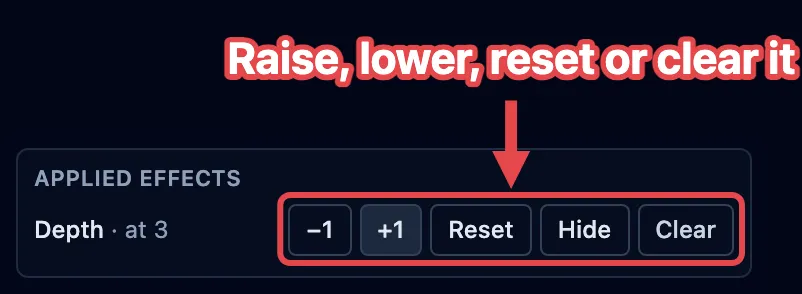
It starts at 0 and shows on the creature’s row as a badge with its number in it. In the Applied effects list, it gets buttons of its own:
| Button | What it does |
|---|---|
| +1 | Raises the number by one. |
| −1 | Lowers it by one. It never goes below 0. |
| Reset | Puts it back to 0, and leaves the counter on. |
| Clear | Removes the counter, the way it removes any effect. |