
Keyboard shortcuts
Most of what you do in a fight has a key. You can step the turn, walk the tracker, damage whoever is selected, and open any of the panels without reaching for the mouse. This page lists every command and the key it starts with. You can change any of them, which is covered in Settings & appearance.
See them in the app
Section titled “See them in the app”Press Shift+/ to open the cheat sheet, or click the gear at the top right and
choose Keyboard shortcuts. It lists every command with the key it currently answers
to, grouped the way this page groups them. Press Escape to close it.
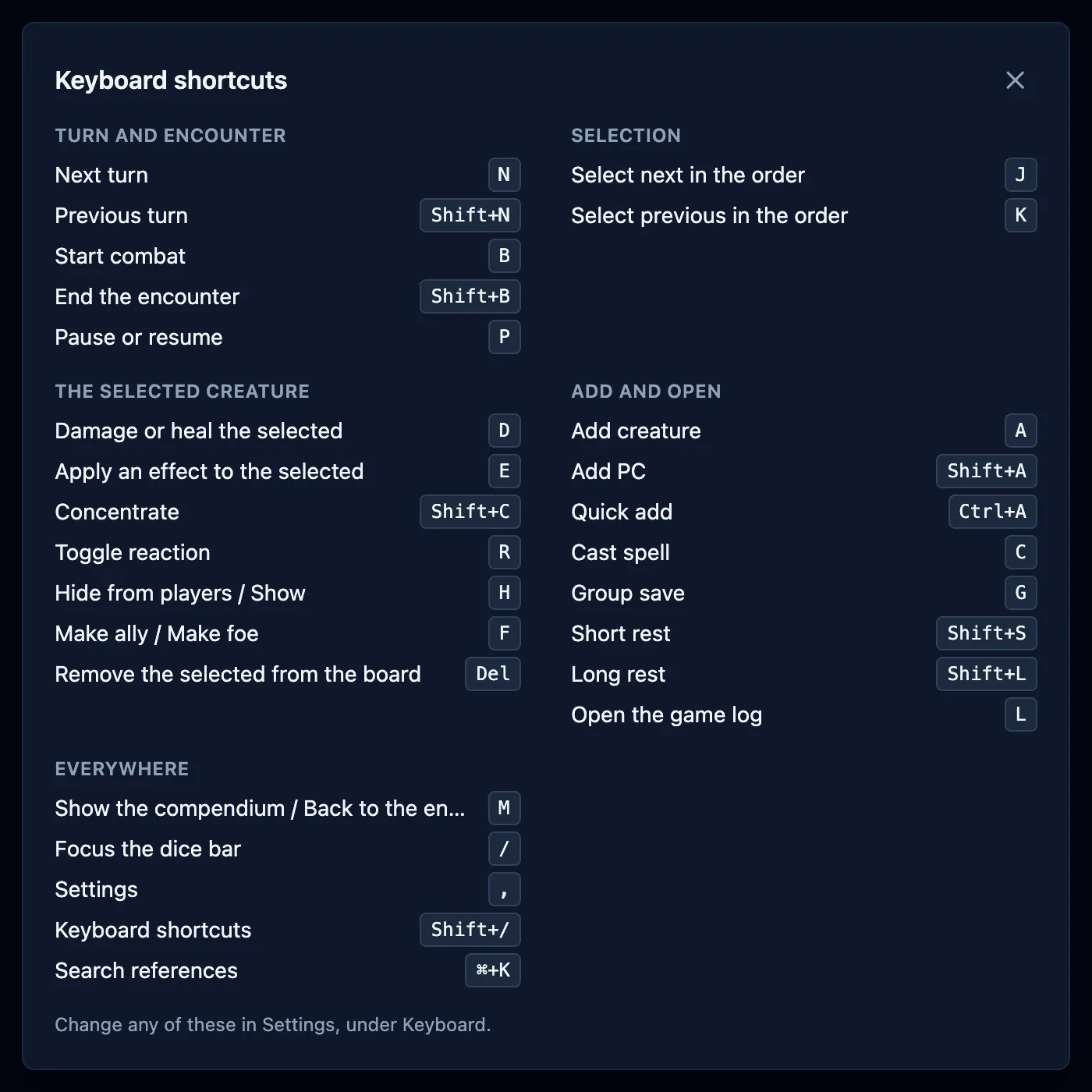
The buttons themselves carry their key too. Hover one and its tooltip names the chord, so you can pick the shortcuts up as you go.
Turn and encounter
Section titled “Turn and encounter”These run the fight itself. All but Start combat need a fight already under way.
| Command | Key |
|---|---|
| Next turn | N |
| Previous turn | Shift+N |
| Start combat | B |
| End the encounter | Shift+B |
| Pause or resume | P |
Next turn does everything the button does, so recharge rolls and effects that end on a turn still happen.
Selection
Section titled “Selection”These move the highlight down and up the tracker, in the order you see it. Hold the key to keep moving. The selection wraps around at either end.
| Command | Key |
|---|---|
| Select next in the order | J |
| Select previous in the order | K |
During a fight the order runs through the living in initiative order, with the dead grouped below. Before a fight it runs through players and allies first, then creatures.
The selected creature
Section titled “The selected creature”These act on the creature the console is showing: the one you clicked, or whoever’s turn it is if you haven’t clicked anyone.
| Command | Key |
|---|---|
| Damage or heal the selected | D |
| Apply an effect to the selected | E |
| Concentrate | Shift+C |
| Toggle reaction | R |
| Hide from players / Show | H |
| Make ally / Make foe | F |
| Remove the selected from the board | Del |
D puts the cursor straight in the hit points box, so you can type the damage and press
Enter. See Resolve an attack.
Add and open
Section titled “Add and open”These open a panel or a picker on the fight screen.
| Command | Key |
|---|---|
| Add creature | A |
| Add PC | Shift+A |
| Quick add | Ctrl+A |
| Cast spell | C |
| Group save | G |
| Short rest | Shift+S |
| Long rest | Shift+L |
| Open the game log | L |
Short rest and Long rest work only before a fight starts. Cast spell and Group save need at least one creature on the board.
Everywhere
Section titled “Everywhere”These work on any screen.
| Command | Key |
|---|---|
| Show the compendium / Back to the encounter | M |
| Focus the dice bar | / |
| Settings | , |
| Keyboard shortcuts | Shift+/ |
When a shortcut does nothing
Section titled “When a shortcut does nothing”The keyboard steps out of the way whenever a key belongs to something else:
- While you’re typing. Every key is yours inside a text box, a number box, or a
dropdown. Click away, or press
Escape, to get the shortcuts back. - While a dialog or a menu is open. The panel in front owns the keyboard until you close it.
- When the command can’t run. A shortcut whose command isn’t available right now
does nothing at all, with no warning. Pressing
Bmid-fight is an example: the fight has already started.
Enter is the exception that works the other way round. Inside a fight dialog, it runs
that dialog’s main button, so you can type a number and commit without reaching for
Apply or Save.
Keys OpenFray won’t take
Section titled “Keys OpenFray won’t take”Four keys can never carry a command, because the browser and the screen reader already
use them: Enter, Space, Tab, and Escape.
Anything held with Cmd (or Alt) goes straight to your browser and the operating
system, so those combinations are never bindable. The browser’s own Ctrl chords are
off limits too, among them Ctrl+C, Ctrl+V, Ctrl+S, Ctrl+F, Ctrl+P, and
Ctrl+R. Ctrl+A is the one exception: Quick add holds it, and select-all still
works inside every text box, because the keyboard stands down while you type.
Any of these keys can be swapped for one you’d rather use, on the Keyboard tab in Settings. The steps are in Settings & appearance.