
Build your own creatures & spells
The built-in books don’t have everything. Some famous creatures aren’t in the Core Rules at all, and your table has its own creations. OpenFray’s homebrew editors let you build your own creatures and spells, kept in your library next to the built-in ones and ready to drop into any fight. Both editors live in the compendium: open the Creatures or Spells tab and use the create button.
Starting from one that exists
Section titled “Starting from one that exists”Most homebrew is a small change to something in the books: a goblin with a crossbow, a fireball that deals cold damage. Both editors open with Start from… above the name, so you don’t type the rest of the stat block again.
- Click Start from… at the top of the form. It searches everything you can use: the libraries you’ve turned on and your own creations, each badged with where it came from.
- Click the one you want. Every field fills in, and every field stays editable.
- Type the name. The name is the one thing that isn’t copied, because what you’re making is a new entry of its own. The Source is also left for you to fill in.
What you save gets its own entry, badged Custom, and editing it later never touches the one you started from.
Start from… appears when you’re creating. It isn’t there when you edit something you already saved, because the form is already that creature.
Creating a homebrew creature
Section titled “Creating a homebrew creature”The form is a whole stat block, broken into collapsible sections you can work through in any order: Identity, Defense & HP, Speed, Abilities & saves, then skills, senses, traits, actions, reactions, legendary actions, and spellcasting.
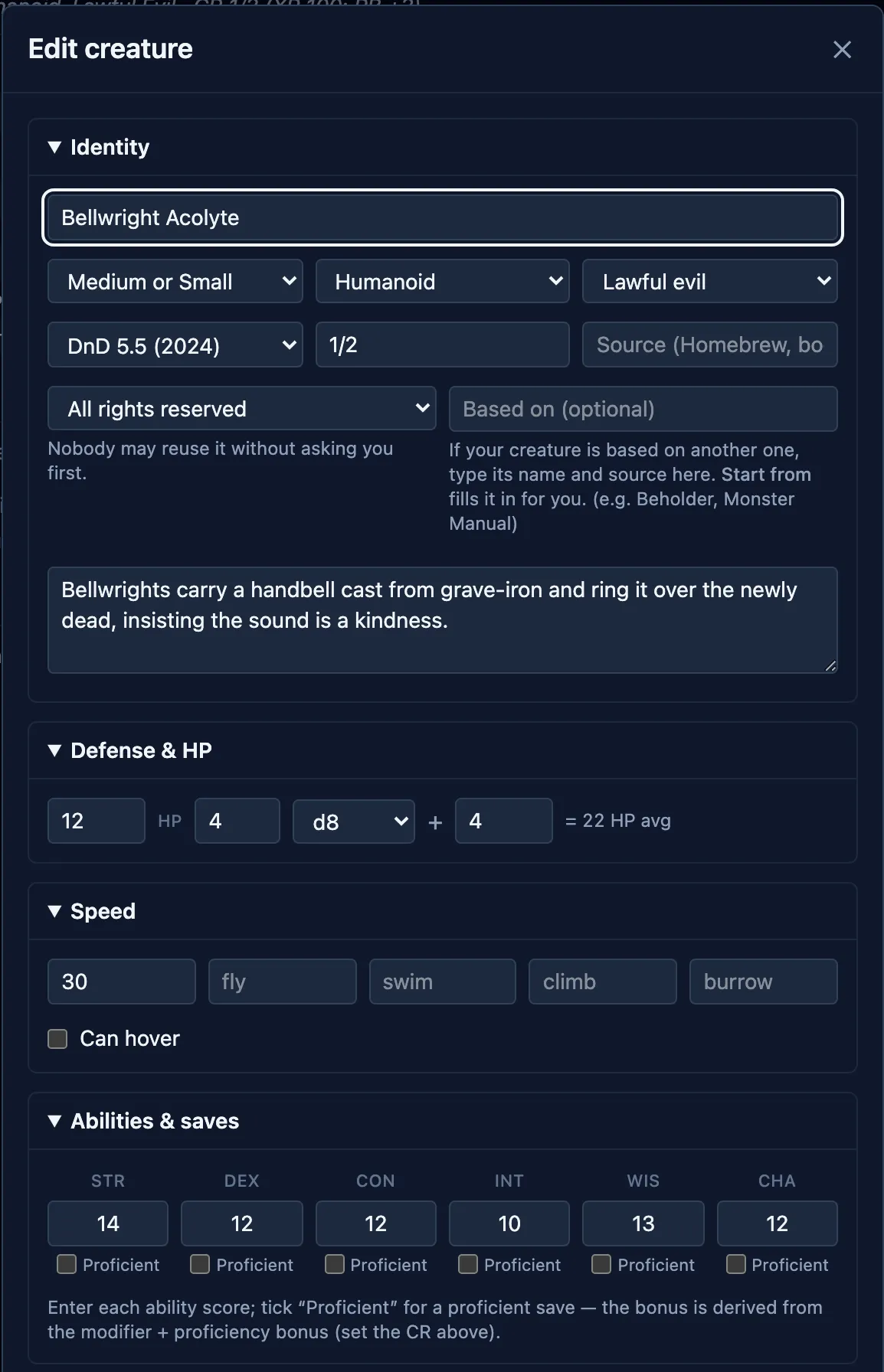
You enter the creature’s stats, and OpenFray does the math from them:
- Give it a challenge rating, in Identity, and OpenFray knows its proficiency bonus. Everything below depends on it, so set it early.
- In Defense & HP, give the hit dice: how many, which die, and any modifier. The average appears beside them (“= 17 HP avg”).
- In Abilities & saves, type the six scores and tick Proficient on the saves it’s good at. The bonus is the modifier plus the proficiency bonus, calculated for you.
- Skills work the same way. Tick proficient, and tick expertise where it applies.
- For an attack, pick which ability it swings with. The to-hit is that ability’s modifier plus proficiency, and the modifier is baked into the damage the way printed stat blocks do it.
- For spellcasting, pick the ability; the save DC and spell attack bonus follow.
Every derived number updates as you type, so you can check them as you go. If one looks wrong, fix the ability score or the challenge rating behind it, and the total follows.
Importing instead of typing
Section titled “Importing instead of typing”If the creature already exists on D&D Beyond, don’t retype it. The importer turns that page into an OpenFray creature. Paste what it gives you into Import a creature, on the Creatures tab:
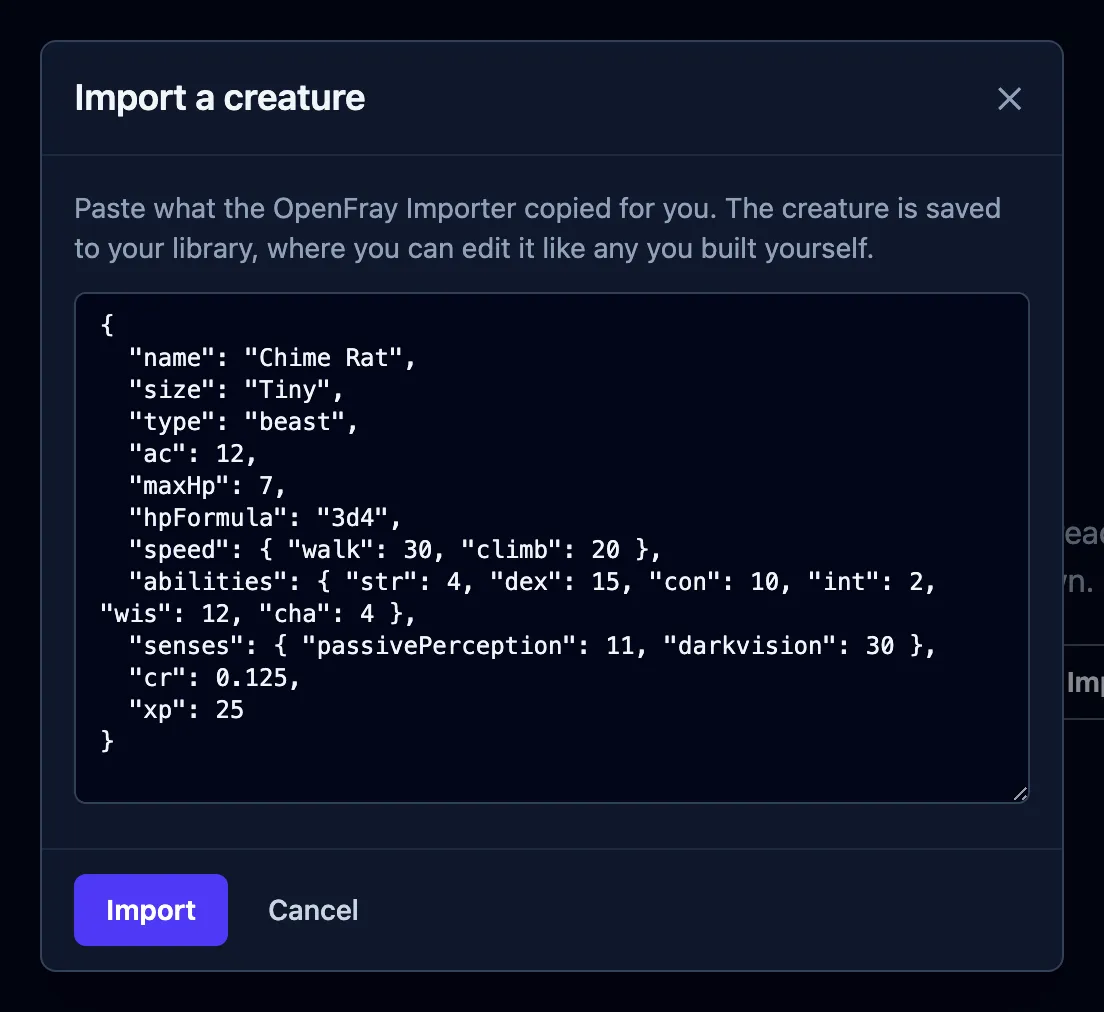
What lands in your library is an ordinary custom creature: editable, yours, and no different from one you built by hand.
Creating a homebrew spell
Section titled “Creating a homebrew spell”The spell form covers the card, in the same collapsible sections: Identity (name, level, school, rules version), Casting (time, range, duration, concentration, ritual, components), Description, and Mechanics, where you say whether the spell resolves as nothing, a spell attack, or a saving throw. Leave Mechanics empty and you get a utility spell: OpenFray shows the card and lets you adjudicate.
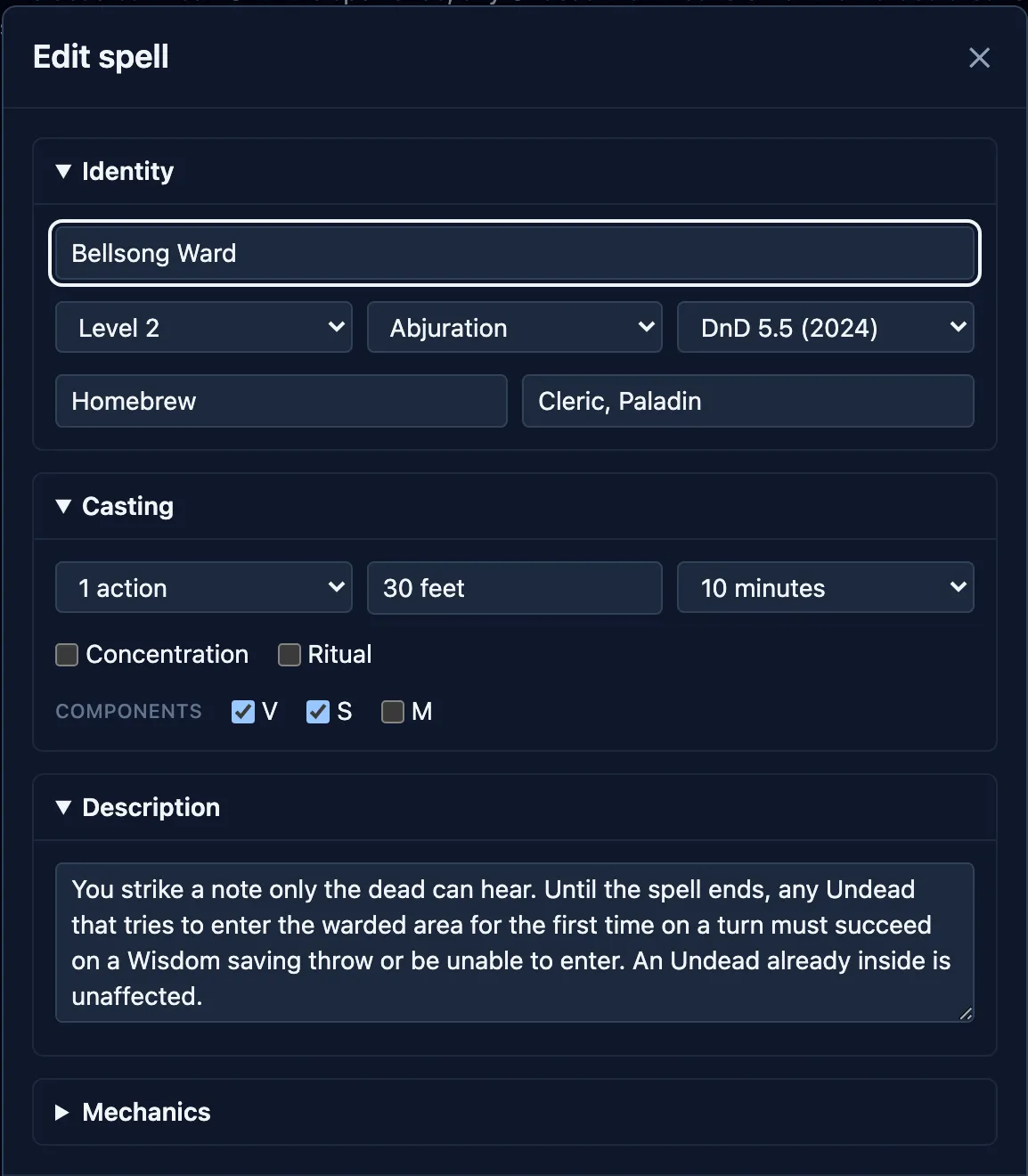
Casting at higher levels usually follows a pattern, so you describe the pattern once: give the extra damage per slot above the spell’s base level (or, for a cantrip, per tier as the caster levels up), and OpenFray expands that into the actual damage at every level, showing you the result as you type. For spells that don’t follow a neat pattern, switch to Edit each level and set them by hand.
Where the homebrew creations live
Section titled “Where the homebrew creations live”Your creatures and spells:
- appear in the compendium beside the built-in ones, badged Custom;
- show up in the Add creature and Cast spell pickers;
- belong to the Homebrew creations library, on by default in Settings, so you can shelve them all at once;
- can be edited or deleted later from the bottom of their own card.
Editing one doesn’t change a fight already in progress. A creature you added to the tracker is a copy, taken at the moment you added it, so add it again if you want the changes on the board.