Share the player view
The player view is a read-only screen your players open on their own devices. It shows the turn order and the game log, and nothing else. It is live, and it is for your own table: handing an encounter to another Game Master is publishing, which is a different link. You decide when it’s on and how much of a creature it gives away. This page covers sharing it, what your players see, and what stays with you.
It works without an account. Signing in lets you give the link a name you can remember.
Sharing the fight
Section titled “Sharing the fight”The cast button sits in the top bar, between your account and the gear. It’s the one that looks like a screen with signal waves coming off it.
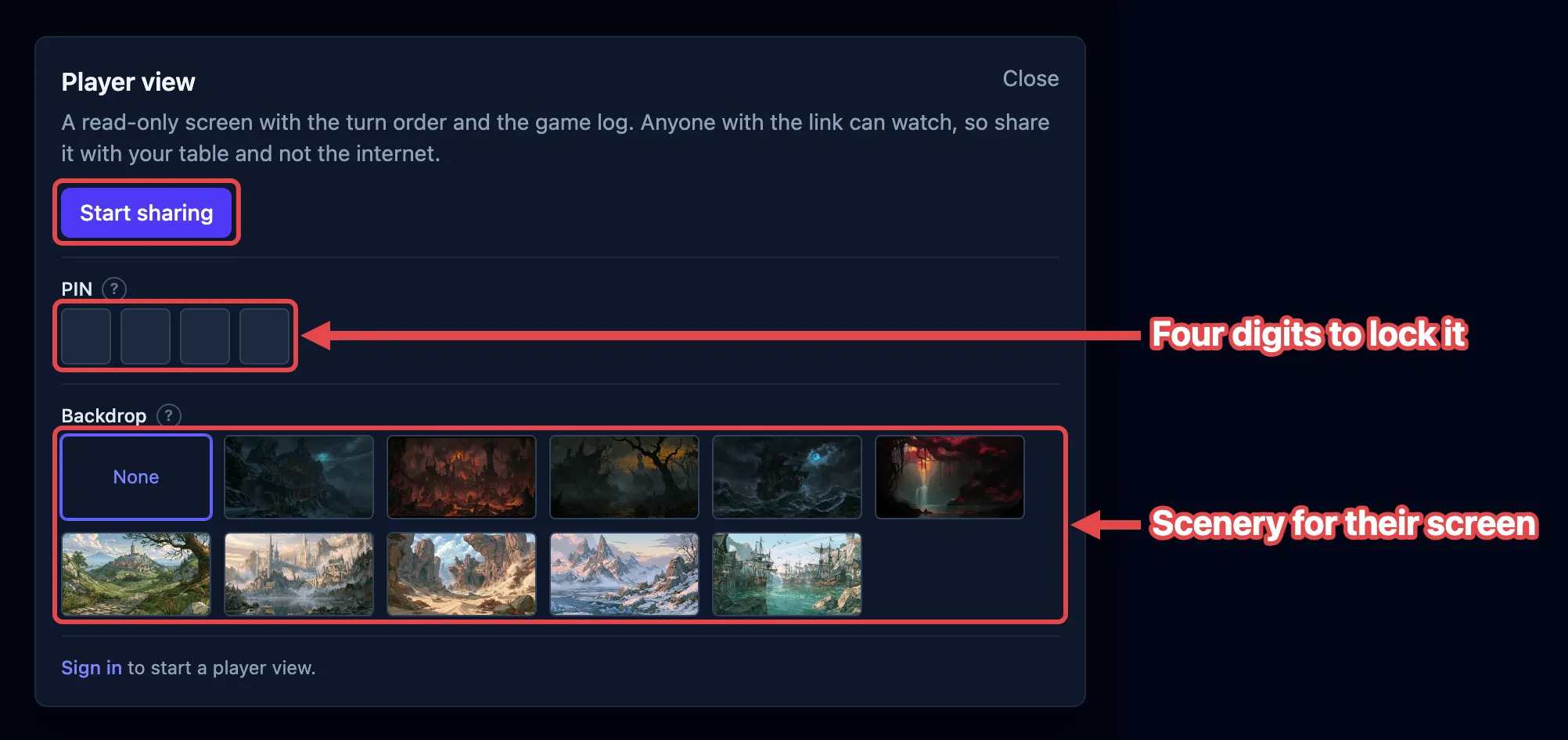
- Click the cast button. The Player view box opens.
- Click Start sharing. A green dot appears on the button while sharing is on, and the box grows a Link section.
- Click the copy button (two sheets) beside the link, and send the link to your players however you normally talk to them.
- To see what your table sees, click the open button (an arrow leaving a box). The player view opens in a new tab.
- When you’re done, open the box again and click Stop sharing.
Your players’ screens fill in as soon as you start. If someone opens the link first, it shows Connecting, then fills in on its own. Nobody has to reload.
The top of the player view shows Live while its board is current. If the connection drops, it shows Reconnecting and the age of the last update for up to 30 seconds. The board is covered with Connection lost after that. A fresh update brings it back.
Stopping the share or losing permission shows Access ended at once. The player needs a new link before the board can return.
Everything else in the box (the PIN, the backdrop, the link’s name) can be changed mid-fight, and reaches the table straight away.
Lock it with a PIN
Section titled “Lock it with a PIN”If you’d rather the link wasn’t enough on its own, set a four-digit PIN. Your players type it once, on their own device, before the board shows.
- Click the cast button.
- Under PIN, type four digits into the boxes. The fourth digit sets it, and the box says so.
- Tell your table the four digits.
Anyone opening the link now gets This view is locked and four boxes of their own. The right four open the board in a moment; the wrong four are told so and can try again.
Remove, beside the boxes, lifts the lock and leaves the link open. Clearing every box does the same.
The lock is real, not a curtain. With a PIN set, the board travels down a route worked out from the link and the PIN together, so somebody who has the link and not the digits has nowhere to read the fight from. Nothing is being hidden from a page they already have.
The PIN is kept in the browser you set it in, beside the link itself, so it survives a reload and lasts until you change it.
Put a backdrop behind it
Section titled “Put a backdrop behind it”A backdrop is a piece of scenery behind your players’ screen. Under Backdrop in the same box, pick one of the tiles, or None for the plain screen. It changes on their devices as you click, so you can move the scene from the harbor to the marsh between rounds.
Ten come bundled, and nothing else can be used: the art ships with OpenFray, so your players’ browsers never fetch a picture from anywhere else.
- Night and dusk — Mountain fortress, Hell fortress, Marsh, Sea, Magical forest.
- Daylight — Valley road, Elven city, Desert ruins, Frozen lake, Morning harbor.
Each piece was treated for one of the two moods, and it brings that mood with it: a daylight backdrop turns your players’ screen light, a night one turns it dark. While a backdrop is showing, their light-and-dark switch stands down rather than fight it, and picking None hands them their own choice back untouched.
Like the PIN, the backdrop belongs to the browser you set it in, not to a campaign or an account. It needs neither.
What your players see
Section titled “What your players see”Their screen has two side-by-side columns, which scroll separately so a long fight’s log never pushes the turn order out of sight. On a phone they stack, log underneath.
- The turn order — everyone in the fight, in initiative order, with their conditions and effects, who’s up, and which round you’re on.
- The game log — the running record of what happened.
- The clocks — how long the fight has taken, and how long it has run in the game.
The top of their screen carries the OpenFray wordmark and their own light-and-dark switch. It can carry your campaign’s name and your own, too. Both are off until you turn them on, in the settings covered below.
Player characters always show in full: hit points, armor class, conditions, and death saves. Your table wrote those numbers down themselves. Anyone fighting alongside them shows in full too: a summoned wolf, a hired guard, a creature you’ve made an ally (see Allies).
How much of a creature they see is your call, in the settings covered below.
When a creature appears
Section titled “When a creature appears”Your players see the creatures when the fight starts, and not while you’re setting it up. Until you press Begin, their screen shows the party and nothing else, so lining up six ogres gives nothing away.
You can overrule that for any creature, either way:
- Click the creature in the tracker.
- In the controls beside its stat block, click Hide from players to hold it back, or Show to players to put it on their screen. The button always names what the click does, so it reads Show to players before the fight, when no creature is on their screen yet.
A creature you hold back is tagged Hidden on your own tracker, and anything it does stays out of your players’ log. A creature merely waiting for the fight to start isn’t tagged; it appears on its own when you press Begin.
A creature that arrives mid-fight follows your Creatures arriving mid-encounter setting, so reinforcements can be held back by default and revealed when the party sees them.
When the fight ends, every creature leaves your players’ screen again, and anything you showed or hid during it goes back to normal. The next Begin puts them all back, so you never reveal the same creature twice.
What lands in their log
Section titled “What lands in their log”Everything that happens on the board, minus the dice a creature rolled:
| They see | They don’t |
|---|---|
| A creature attacking, and whether it hit or missed | The dice, or its attack bonus |
| What a roll came to, and the damage it dealt | The dice that got there |
| Whether a creature saved or failed | Its save total, or its bonus |
| How much damage a creature took, or was healed | How many hit points it has |
| Conditions and effects landing and clearing, on anyone | — |
| Concentration starting and breaking | — |
| Spells being cast, by name | — |
| Turns, rounds, knockouts, deaths, and rests | — |
A roll’s total is safe to show, because the dice and bonuses behind it stay unknown. A saving throw is the exception and shows no number at all: set against a difficulty class your table can work out, a save total would give the creature’s bonus away, so their screen says only saved or failed.
Damage always reaches them, whichever hit-point setting you use. The party watched the hit land, and the number they lost is theirs to know. What stays with you is how many hit points the creature had to begin with.
Two things never reach the player view, whatever you choose:
- Creature stat blocks — abilities, attacks, traits, and spells.
- Recharge rolls — whether a dragon got its breath weapon back.
When the fight ends
Section titled “When the fight ends”Your players see the same summary you do, for as long as you leave it open: the outcome, the experience earned, how long it took, and the standout hits. Their log clears at the same moment, ready for the next fight. Both are settings, covered next.
Choosing what they see
Section titled “Choosing what they see”Click the gear at the top right, choose Settings, then the Player view tab. Every choice applies to every fight, and reaches your players’ screens straight away, mid-fight included. The full list of choices is in Settings & appearance. Four are worth explaining:
- Creature hit points → In words shows a creature as Healthy, Hurt, Bloodied, or Critical, without the number. Your players can tell the fight is going their way without counting hit points down to the last one.
- Creature rolls → Hidden takes the total off a creature’s attacks, saves, and checks. What happened stays: whether it hit or saved, and the damage it dealt.
- Creature conditions → Hidden takes the badges off a creature’s row, and the lines about conditions landing and clearing out of their log. Your players’ own characters keep theirs.
- Game log → This encounter only starts their log fresh each time you press Begin and clears it when the fight ends. Yours keeps everything either way.
- Campaign name and Game Master name → Shown head their screen with the campaign you’re running and Run by your profile name. Both start off: what the game is called is yours to announce, not the link’s. The second one needs an account, because an anonymous link has no name to send.
Naming the link
Section titled “Naming the link”Without an account you get a link with a jumble of letters in it. It’s yours, it stays the same, and it’s kept in the browser you’re using.
Sign in and you can name it instead. Under Link, the part nobody edits is written out as plain text and the end of the link sits in a box after it, so you’re editing the link itself rather than filling in a field about it:
- Click the cast button.
- Type over the end of the Link, something like
tuesday-game. - Click Save. The button appears once what you’ve typed differs from the link you’re on.
Letters, numbers, and hyphens only; anything else simply doesn’t land as you type, so the count of what you’ve typed is always the truth. Names are first come, first served: if another Game Master has already taken one, OpenFray says so and your current link keeps working, so nothing breaks mid-session.
A named link follows your account, so it’s the same on your laptop and your tablet, and it’s still the same next week.
What isn’t saved
Section titled “What isn’t saved”Nothing about the shared view is stored on a server. The board is passed to your players’ screens as it changes and kept nowhere, so:
- when you stop sharing or revoke the link, their screens show Access ended;
- there’s no history to scroll back through after the session;
- two Game Masters sharing at the same time never see each other’s fights.
Where to next
Section titled “Where to next”- Settings & appearance — every player-view choice and its default.
- The game log — what gets logged, and how to review it.
- End the fight — the summary your players see with you.
- The tracker — the same order, from your side.