
Getting started
OpenFray is a combat console and initiative tracker for Dungeons and Dragons. It runs in your web browser at openfray.app/console. There’s nothing to download and no account needed. This page runs you through your first fight, start to finish. You can sign in later if you want to save your game.
The console at a glance
Section titled “The console at a glance”On a laptop, the console is one screen, split into three columns. Everything you use during a fight is on it.
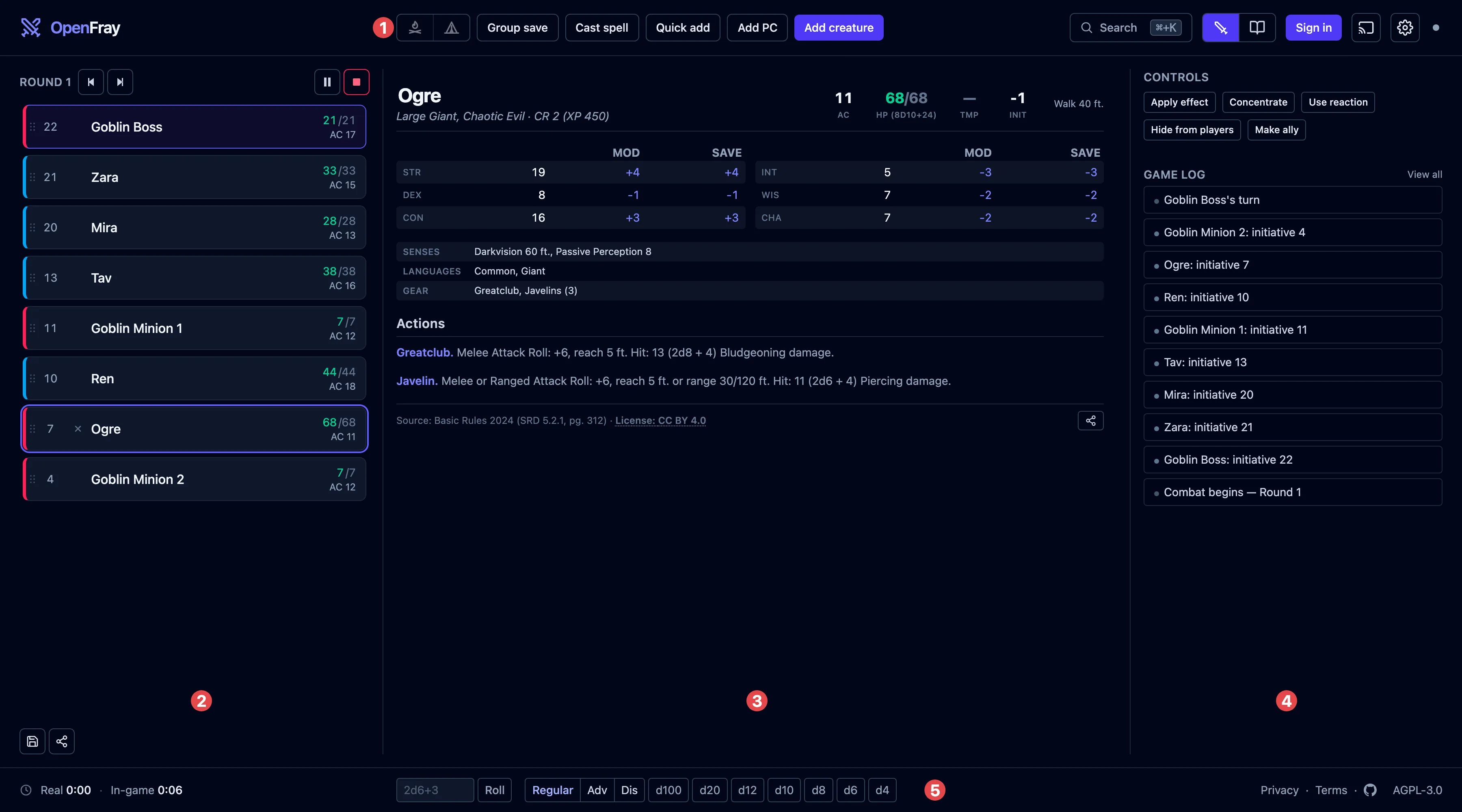
- The top bar. Adding creatures and players, group saves, casting a spell, and rests, plus the switch between the console and the compendium. On its right: signing in, the cast button (sharing a player view), and the gear, which opens a short menu: settings, light or dark, this handbook, and reporting a bug.
- The tracker. Everyone in the fight, in the order they act, with hit points, armor class, and any conditions on them.
- The stat block. Everything about the current or selected combatant: abilities, actions, reactions, and so on. Click an attack here to roll it. See The stat block.
- Controls and the log. Buttons for the creature you’ve selected (apply an effect, concentrate, use a reaction) and below them a running list of what has happened.
- The bottom bar. Dice you can roll by hand, how hard the fight looks before it starts, the fight’s timers once it does, and, when you’re signed in, which campaign you’re running.
On a phone or tablet
Section titled “On a phone or tablet”The console fits itself to the screen you open it on. The same five areas are always there; smaller screens rearrange them. The buttons keep the same names everywhere, so the steps in this handbook work on every screen. When a page says where a control is, it describes the laptop layout.
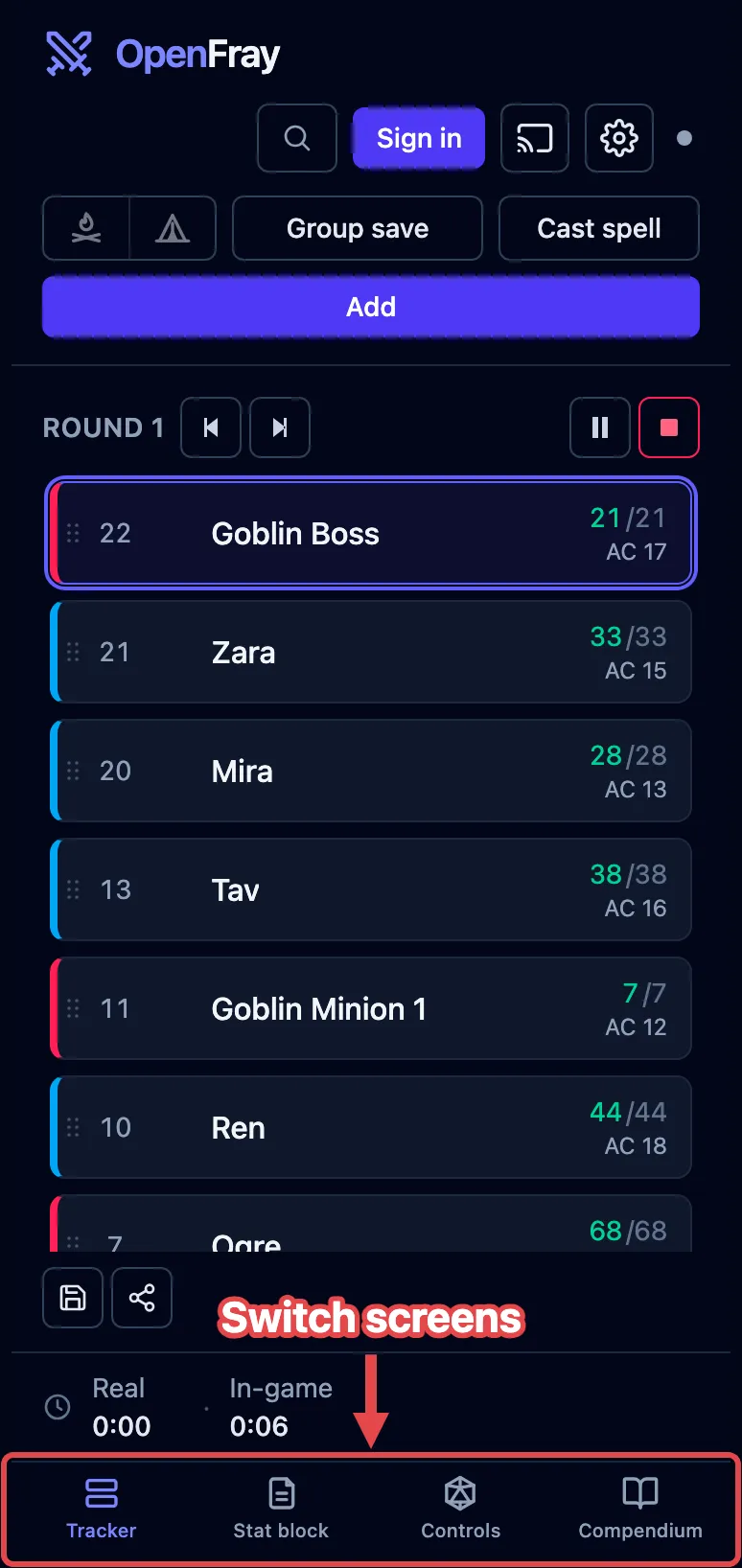
On a phone, or a tablet held upright, the console shows one area at a time. A bar along the bottom switches between Tracker, Stat block, Controls, and Compendium. The dice sit at the top of the Controls screen, and the three add buttons become one Add button.
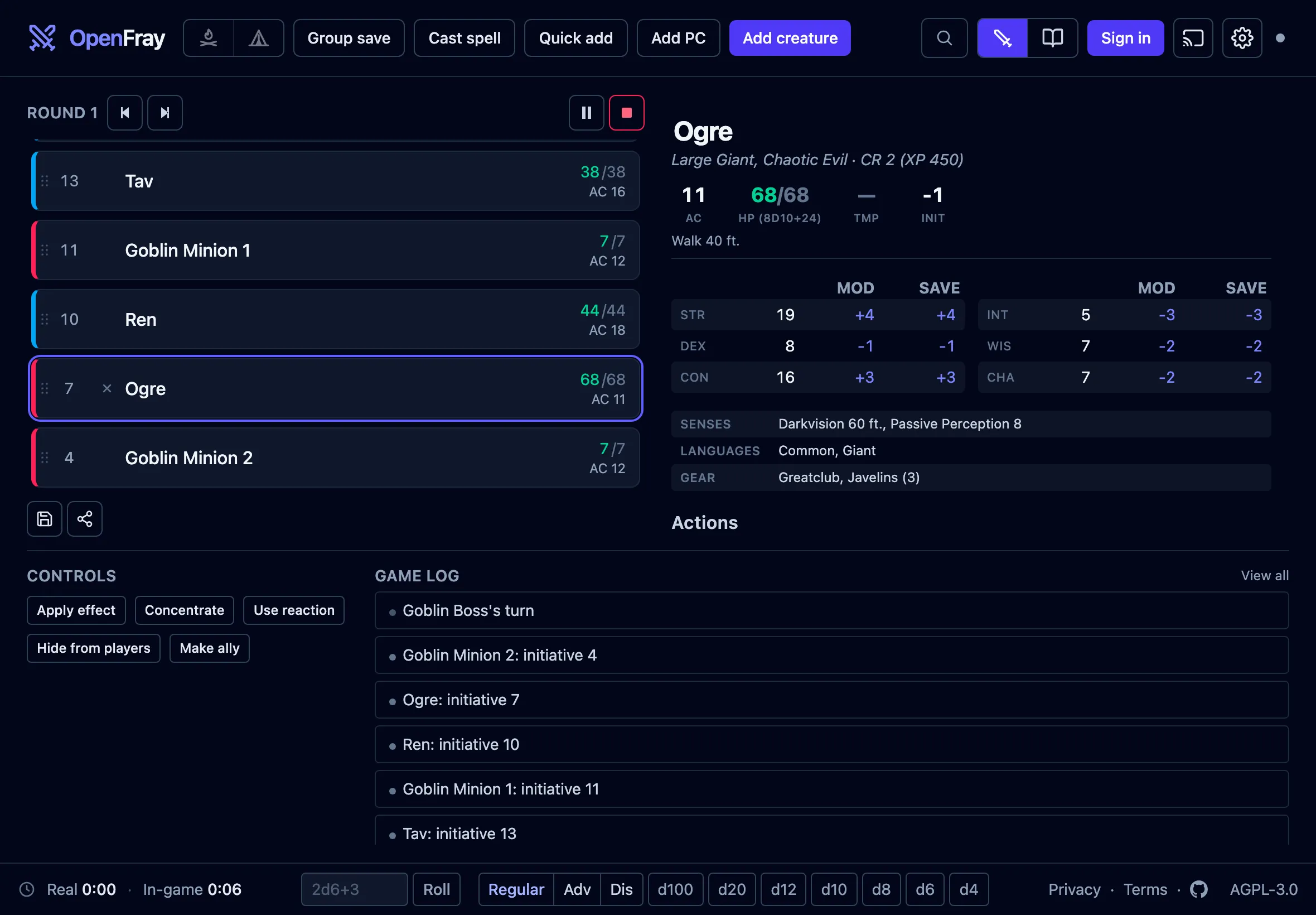
On a smaller tablet held sideways, the tracker and the stat block sit side by side, with the controls and the log in a band below them.
Add your creatures and players
Section titled “Add your creatures and players”Add everyone before the fight starts. There are three buttons, one for each kind of combatant:

- Add creature — one from the built-in compendium. Type a few letters of its name and click it. You get the whole creature: attacks, spells, everything. Add the same one twice and the second is named Goblin 2, so you can tell them apart.
- Add PC — a player. Their name, armor class, hit points, and initiative bonus is all OpenFray needs; players roll their own dice.
- Quick add — something you’re inventing on the spot and won’t use again. Just a name, hit points, and armor class.
Until the fight starts, players and foes sit in separate groups so you can see both sides at a glance.
Start the fight
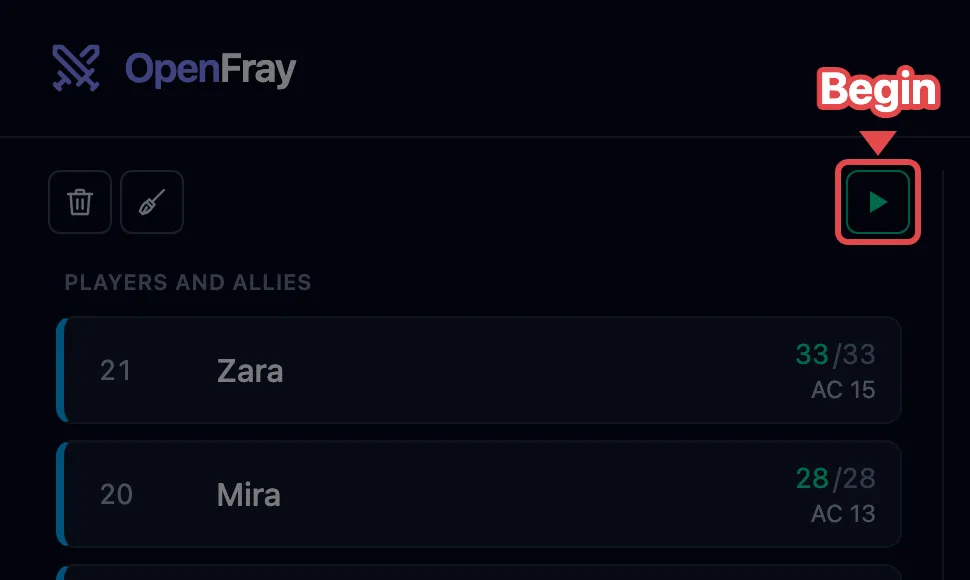
Section titled “Start the fight”Everyone’s on the board, so start the fight. Begin is the ▶ button at the top of the tracker, where the round number appears once you’re going:
Before anything starts, OpenFray asks for everyone’s initiative:
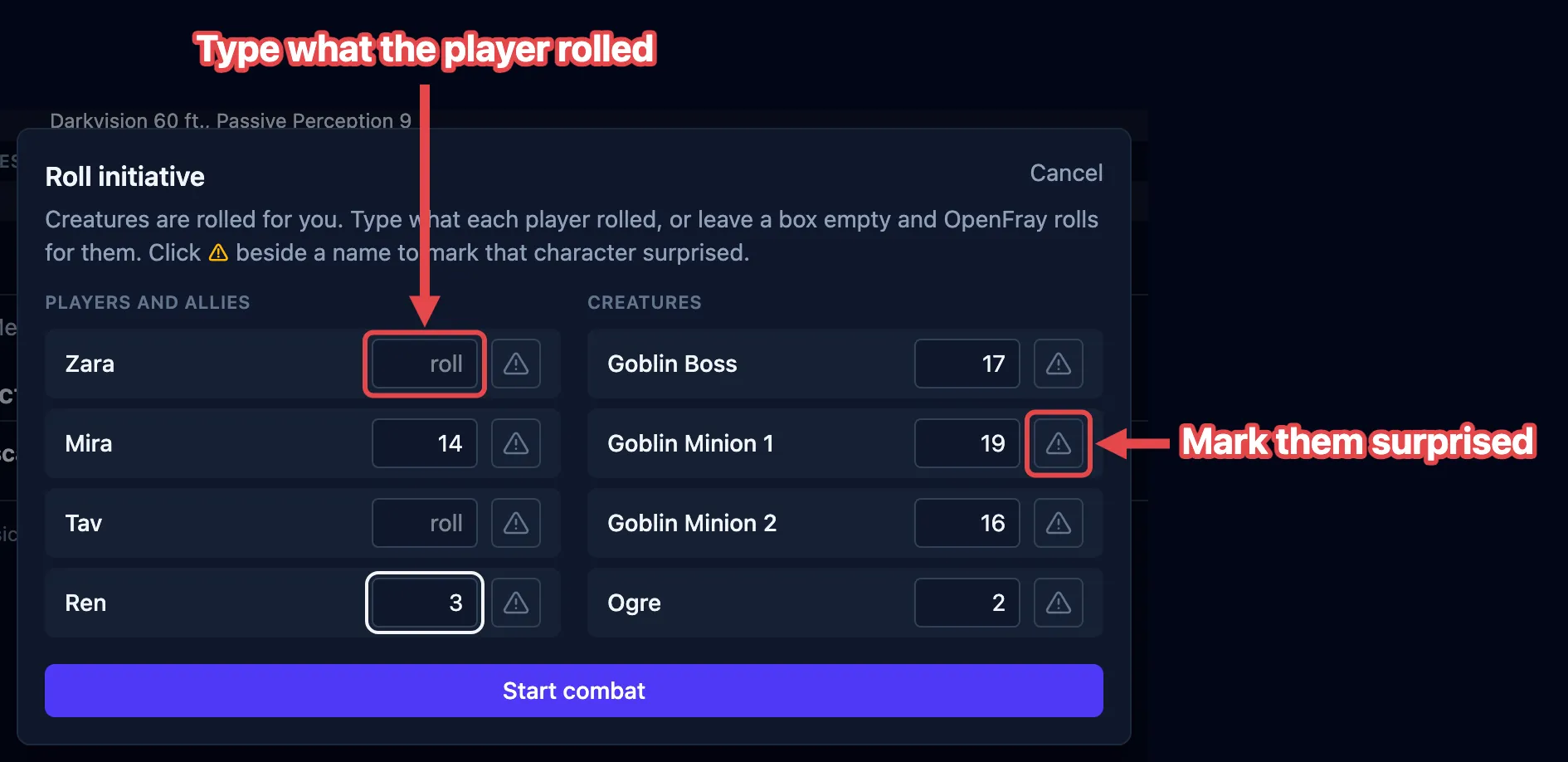
- Creatures are already rolled and filled in for you.
- Players are blank. Type what each player rolled, or leave it blank and OpenFray rolls for them.
- The ⚠ button beside a name marks that character surprised.
Click Start combat and you’re in round 1. From there:
- Next turn (›) moves to the next creature; at the end of the list it starts the next round.
- Previous turn (‹) steps back one turn.
- Click anyone to see their stat block and act on them.
- Pause holds the fight so you can pick it up later. Stop ends it and takes you back to setup, keeping everyone on the board.
When the last foe goes down, OpenFray offers to end the fight and shows you a summary of how it went.
Saving your game
Section titled “Saving your game”While you’re signed in, OpenFray also:
- saves your fight and syncs it to your other devices;
- keeps a list of your players, so you don’t type them in again;
- lets you set up campaigns with your table’s house rules;
- lets you build your own creatures and spells.
Saving happens in the background while you play; there is no save button. Nothing you did before signing in is lost when you sign in.
Where to next
Section titled “Where to next”- Run rounds & turns — running the fight you just started.
- Resolve an attack — rolling a creature’s attack and applying the damage.
- Roll saving throws — one save or a whole group at once.
- Apply & manage effects — tracking who’s frightened, poisoned, blessed, and so on.
- The tracker — what each row shows, and changing hit points.